
AuroraViewer manual
Zoom, pan, and viewing modes
A composition overview and a pixel-level inspection need different zoom levels. Switch viewing modes, then use pointer-centered zoom and pan for detail.
Choose a zoom mode
- Fit to Window: fits the full image within the current canvas.
- Original Size: uses the default 1:1 relationship between source pixels and screen points.
- 200%: a fixed zoom level for closer pixel inspection.
- Preserve Scale: keeps the current display scale when you change images.
| Action | Default |
|---|---|
| Toggle fit/original | ⌘0 |
| Fit to Window | ⌥1 |
| Original Size | ⌥2 |
| Preserve Scale | ⌥3 |
| 200% | ⌘⌥2 |
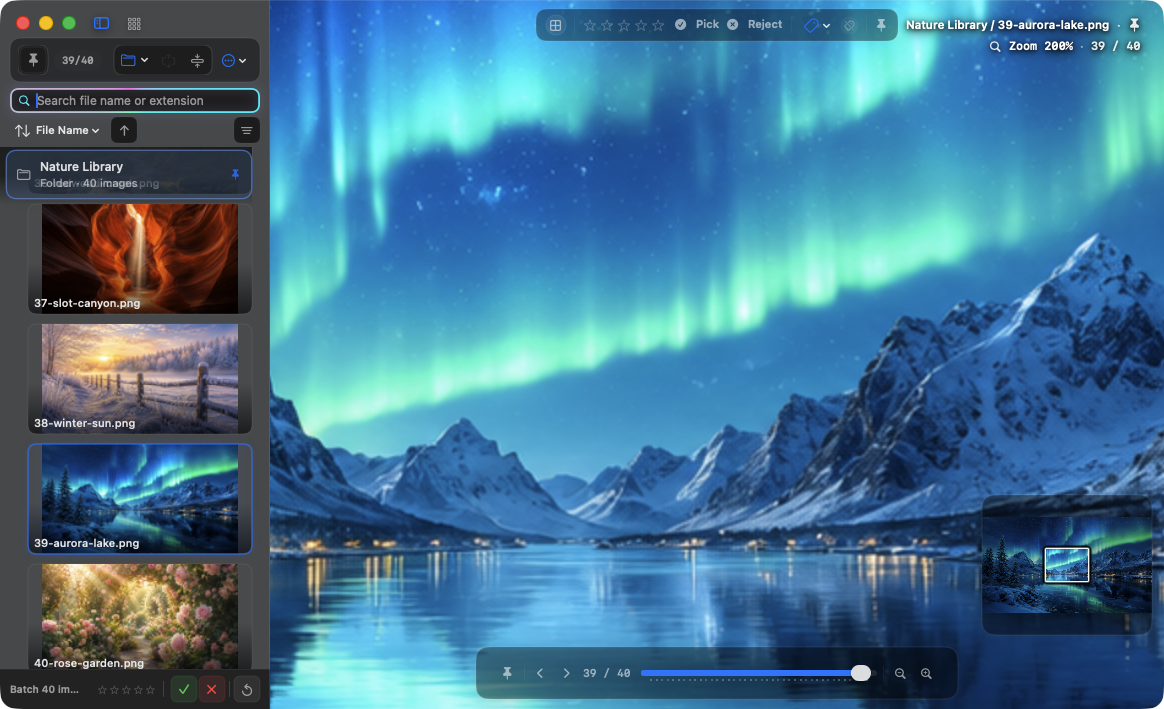
Zoom, pan, and rotate
- Press Plus or Minus to zoom in steps.
- Use the configured wheel zoom to zoom around the pointer. The default is Command-wheel.
- Drag the enlarged image or use the minimap to pan.
- Rotate 90 degrees with Command-[ or Command-], and press Space to reset zoom, pan, and rotation.
Full screen and Clean View
- Command-Return toggles full screen.
- Option-Space toggles Clean View, minimizing controls and overlays.
- The sidebar, bottom slider, minimap, histogram, and EXIF overlay can each be toggled.
- Auto-hide can reveal controls only while you interact with them.
Inspect pixels and color
- Antialiasing offers Off, Balanced, High, and Maximum quality.
- The pixel grid appears when each source pixel is large enough on screen.
- For transparent images, choose System, white, gray, black, or checkerboard backgrounds.
- Large images show a viewport-sized preview first, then progressively refine detail after interaction settles.