
AuroraViewer manual
Sidebar, search, sort, and filters
Search and filter results affect more than the visible list: they can also define the scope of batch ratings and duplicate scans. Narrow the list, then confirm its count.
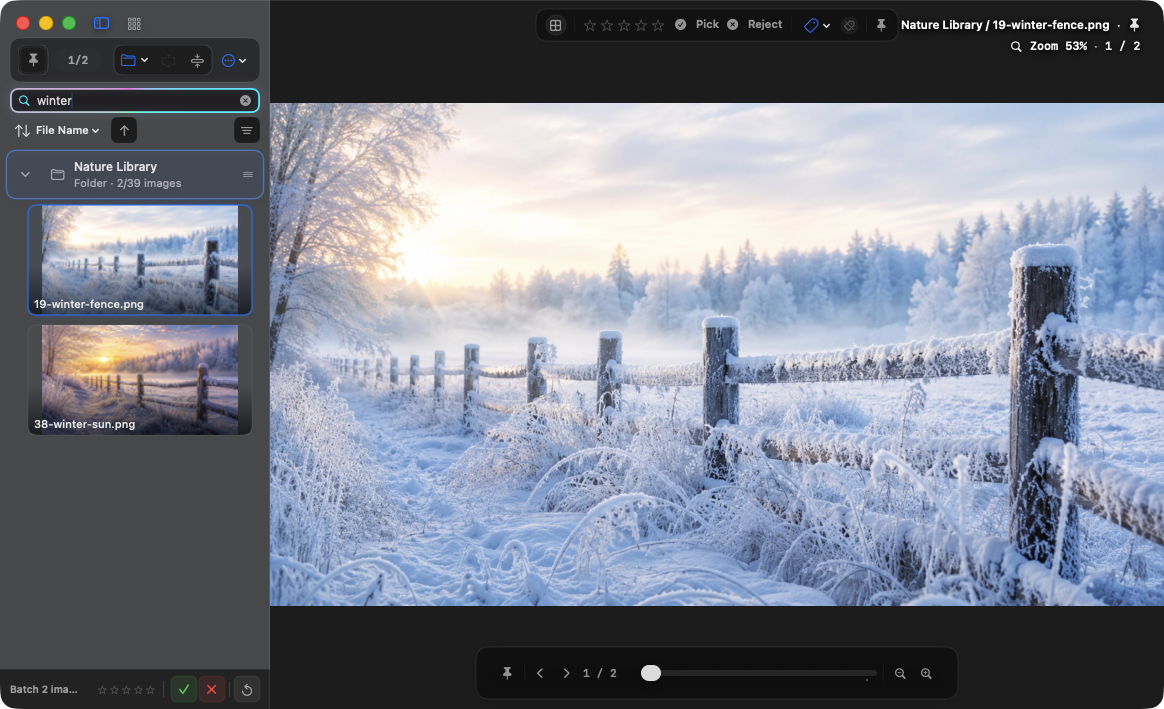
Search by file name or extension
- Press Command-F to focus the search field.
- Enter part of a file name or an extension. Search is case-insensitive.
- Select from the results or apply more filters.
- Clear the query to return to the full list.
Choose a sort order
- Sort by file name, modified date, capture date, file size, extension, rating, or resolution.
- Every criterion supports ascending and descending order.
- Modified date is used when capture date is unavailable.
- Resolution sorting uses orientation-corrected pixel area.
Combine filters
- Rating: show only images with selected ratings.
- Selection status: combine Pick, Reject, and Unmarked.
- Extension and Finder tag: narrow using values actually present in the library.
- Animated only: narrow to multi-frame GIF, WebP, APNG, and similar items.
Apply an action to filtered results
- Apply search, sorting, and filters, then confirm the result count.
- Choose the current filtered results as the scope for a rating or Finder tag action.
- Review the intended change, then run it.
- If the action was wrong, use Undo Last Operation.