Open sources as they are
Add images, folders, nested folders, ZIP, RAR, and 7z; supported images are grouped by source.

AuroraViewerVersion 1.6.3 · Requires macOS 14.0 or later
macOS image review & organization
Bring folders and archives into one library and move naturally through large images. Compare, rate, add Finder tags, and export only the results you need.
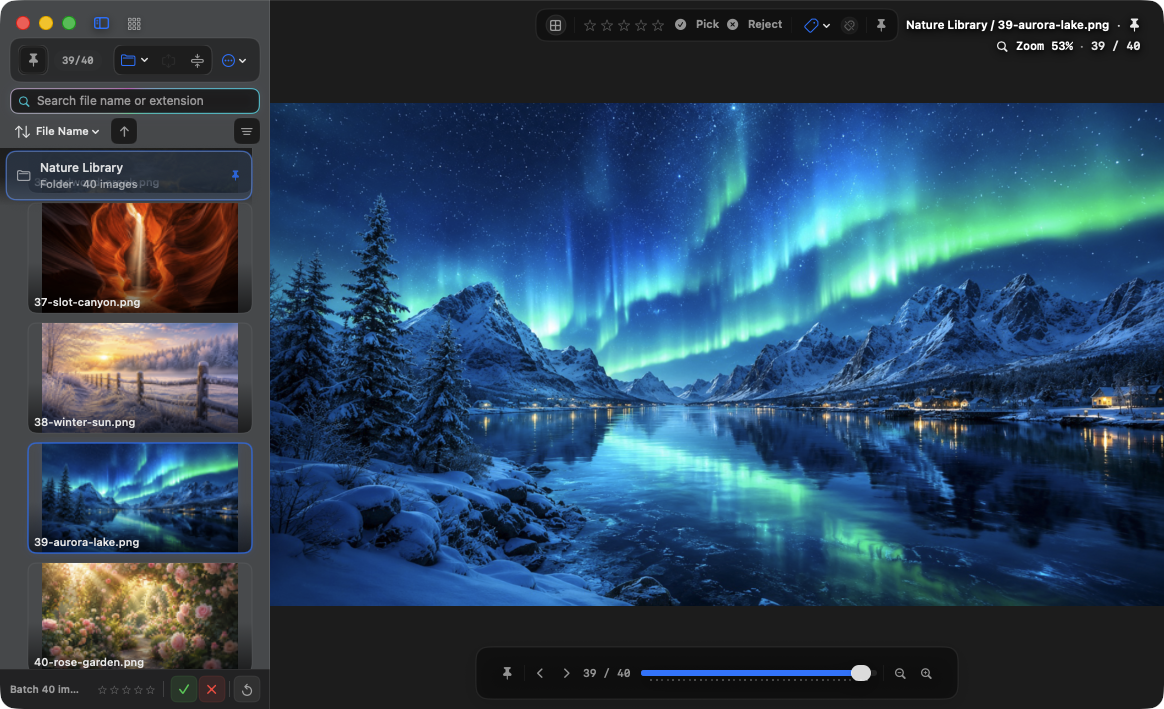
One continuous workflow
You do not have to reopen files one at a time or move review decisions between tools. The AuroraViewer library keeps source location and working context together.
Add images, folders, nested folders, ZIP, RAR, and 7z; supported images are grouped by source.
Move from Fit to Original Size, 200%, two-page viewing, or two-to-four-slot comparison.
Use ratings, Pick/Reject, Finder tags, file moves and copies, or converted export for the next step.
Library review
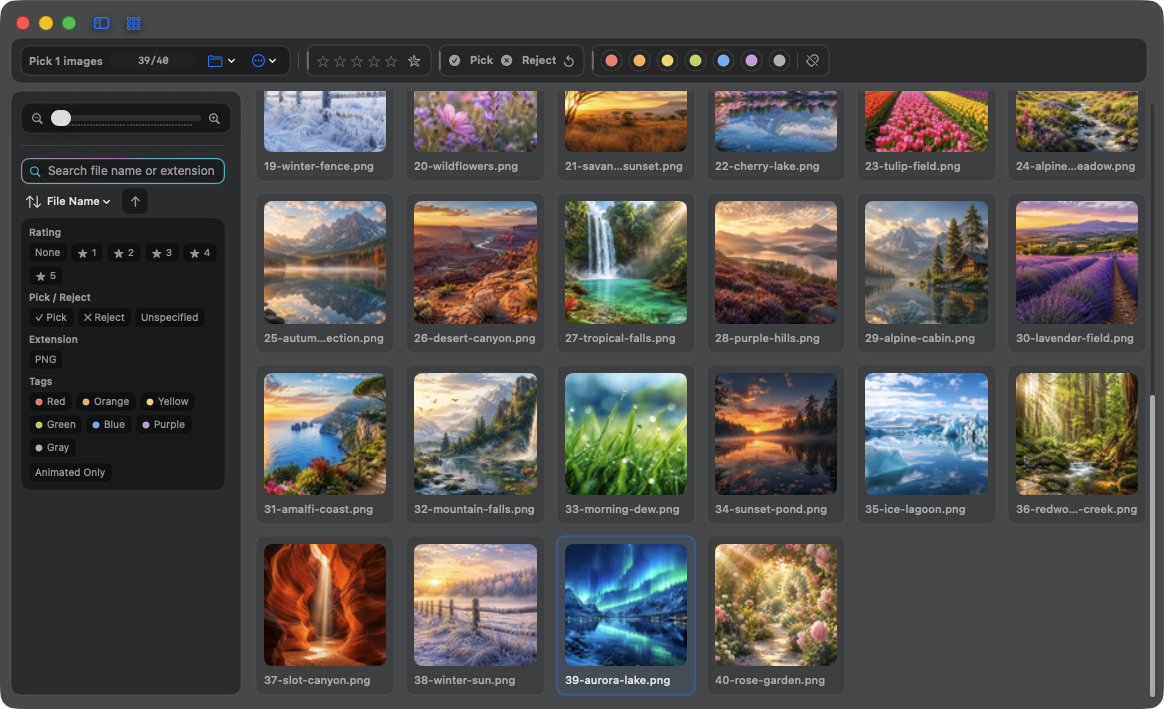
Move between the list and thumbnail grid, search by file name or extension, and sort by capture date, resolution, rating, and more.
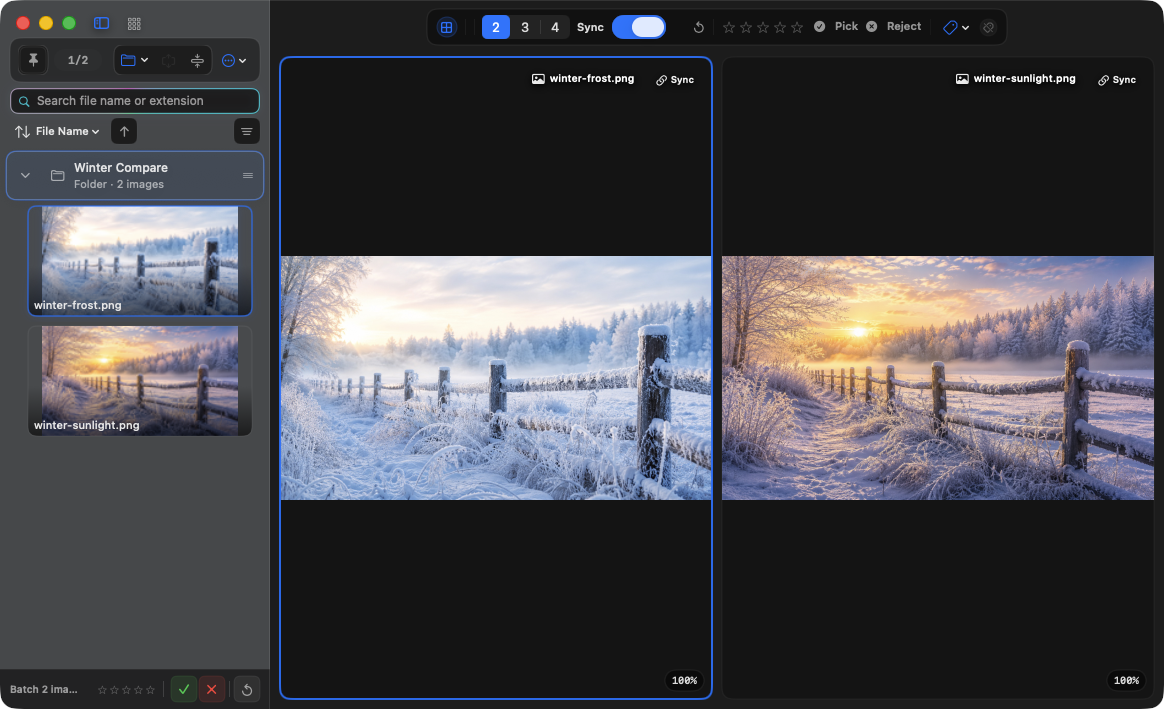
Compare closely
Place candidates in slots and synchronize zoom and pan. Any slot can be made independent when you need a different area.
Broad input, careful output
Inspect a file before converting it, then export the result with the format and dimensions the next task needs.
JPEG, PNG, TIFF, HEIC, WebP, AVIF, PSD, and major camera RAW formats
SVG, AI, EPS, PDF, plus supported images inside ZIP, RAR, and 7z
PNG · JPEG · TIFF · HEIC · WebP, with crop, resize, and metadata options
Availability and rendering quality can vary with the file's codec and the ImageIO or Quick Look support available in macOS.
Start with the manual
The manual follows real tasks from opening files through comparison, duplicate review, export, shortcuts, and troubleshooting.