
AuroraViewer manual
Color, metadata, and inspection tools
Supporting panels expose exposure, color, capture information, and pixel positions that are hard to judge visually. Turn on only the tools you need to preserve canvas space.
View EXIF and color information
- Press Tab to turn on the EXIF overlay.
- Review file name, size, resolution, and available camera, lens, and exposure information.
- Check the ICC name, display color space, bit depth, alpha status, and color-management state.
- Fields that are not present in the file are normally omitted.
Histogram and minimap
- The histogram shows RGB distribution in 64 bins and can switch between combined, R, G, and B channels.
- You can inspect mean, median, and standard deviation, with an expanded view.
- The minimap appears when rotated content is larger than the canvas and shows the current viewport.
- Click or drag the minimap to pan to another part of an enlarged image.
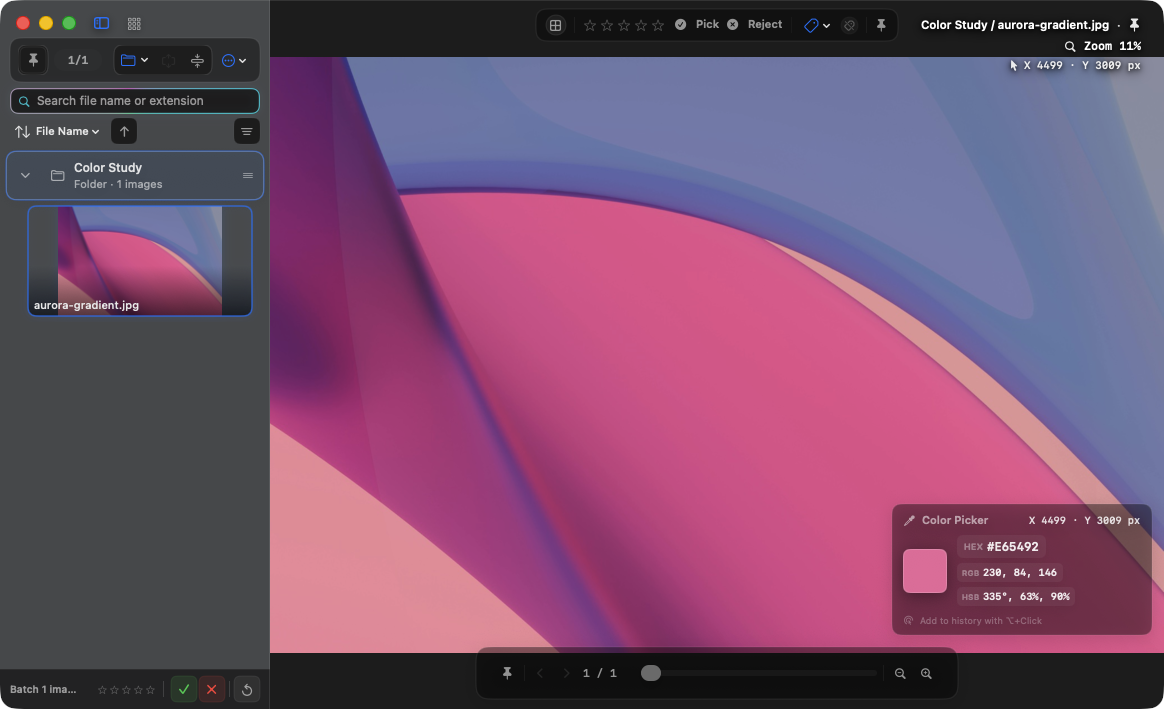
Color Picker
- Press Option-P or use the Tools menu to enable Color Picker.
- By default, Option-click records the current pixel.
- Read the HEX, RGB, and HSB values, or copy them to the clipboard.
- Review up to 10 recent samples, with consecutive duplicates removed.
Select and zoom a region of interest
- By default, Command-drag to create a rectangular region of interest.
- Drag inside the rectangle to move it, or use a corner to resize it.
- Use Zoom to ROI to center the selected region.
- The ROI for the current image is carried into the export sheet as its crop area.