
AuroraViewer manual
Browse and navigate
In a large library, staying oriented while moving to the next candidate matters. AuroraViewer preserves selection and scroll position where possible, even after the list changes.
Move to the previous or next image
- With the canvas active, press Left Arrow or Right Arrow.
- To move farther, drag the bottom slider or select a point on it.
- To jump to a specific item, select its row or thumbnail in the sidebar.
- If you prefer wheel navigation, adjust wheel navigation and its modifier in Mouse Input settings.
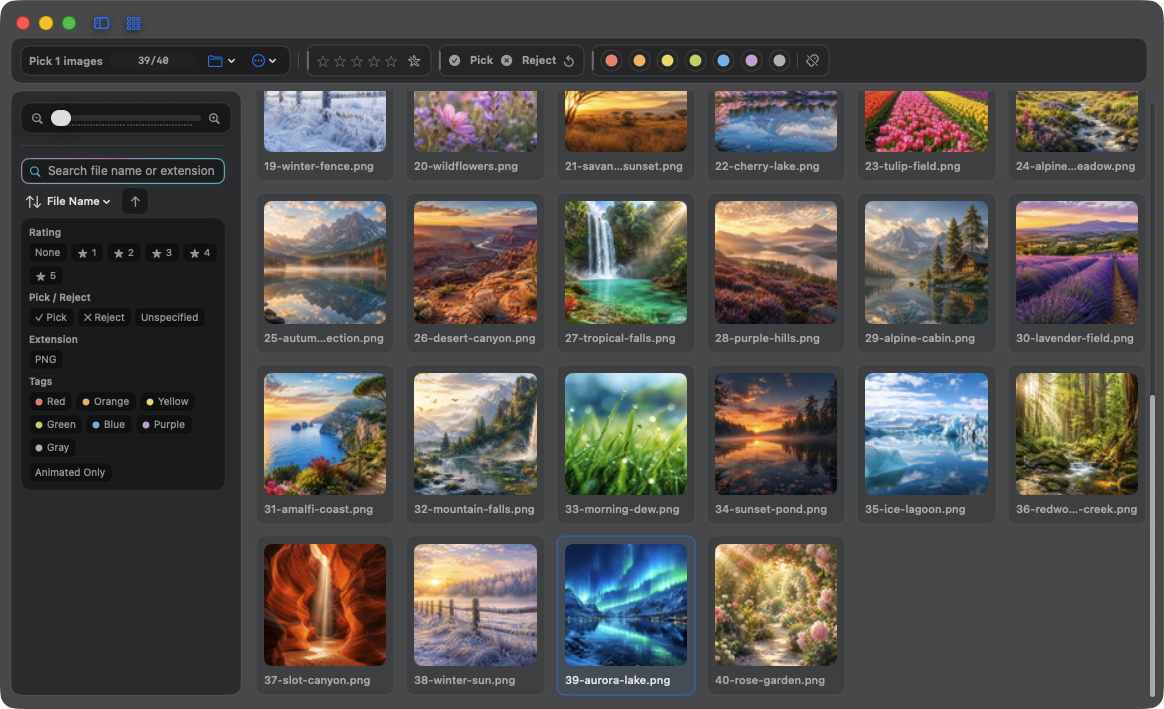
Select multiple items
- Command-click to add or remove individual items.
- Shift-click to select a range from the anchor item.
- Multiple selection can feed Compare mode, batch ratings and tags, move or copy, and duplicate scanning.
- Review the selected count and scope before a file operation.
Stay oriented with groups
- Each input source appears as a collapsible sidebar group.
- You can switch between folder groups and one combined list.
- You can reorder groups or remove a group from the library.
- Removing a group does not delete the original files.
Review in sequence with a slideshow
- Start the slideshow from the Go menu.
- Pause and resume as needed.
- In Settings, choose a 1–30 second interval and whether to loop at the end.
- Stop the slideshow to return to manual review.