
AuroraViewer manual
Find duplicate and similar images
Duplicate scanning gathers candidates for review; it does not delete automatically. Choose a scope and matching methods, inspect the recommended keeper and evidence, then explicitly choose any file action.
Start a scan
- Choose the whole library, current filtered results, sidebar selection, or a specific folder as the scan scope.
- Select Exact, Likely Same Image, Visual Similarity, and/or RAW+JPEG Pair matching.
- Choose Strict, Normal, or Broad sensitivity.
- Start the scan and monitor progress or partial failures.
- Open each result group and compare its items and recommended keeper.
Understand the matching methods
- Exact: uses a full-file SHA-256 hash to find byte-identical files.
- Likely Same Image: uses pixel dimensions and a 64-bit perceptual hash to narrow likely re-encodes.
- Visual Similarity: compares Apple Vision feature distance for similar composition and content.
- RAW+JPEG: pairs camera originals and rendered files with the same base name in the same folder.
Review and organize results
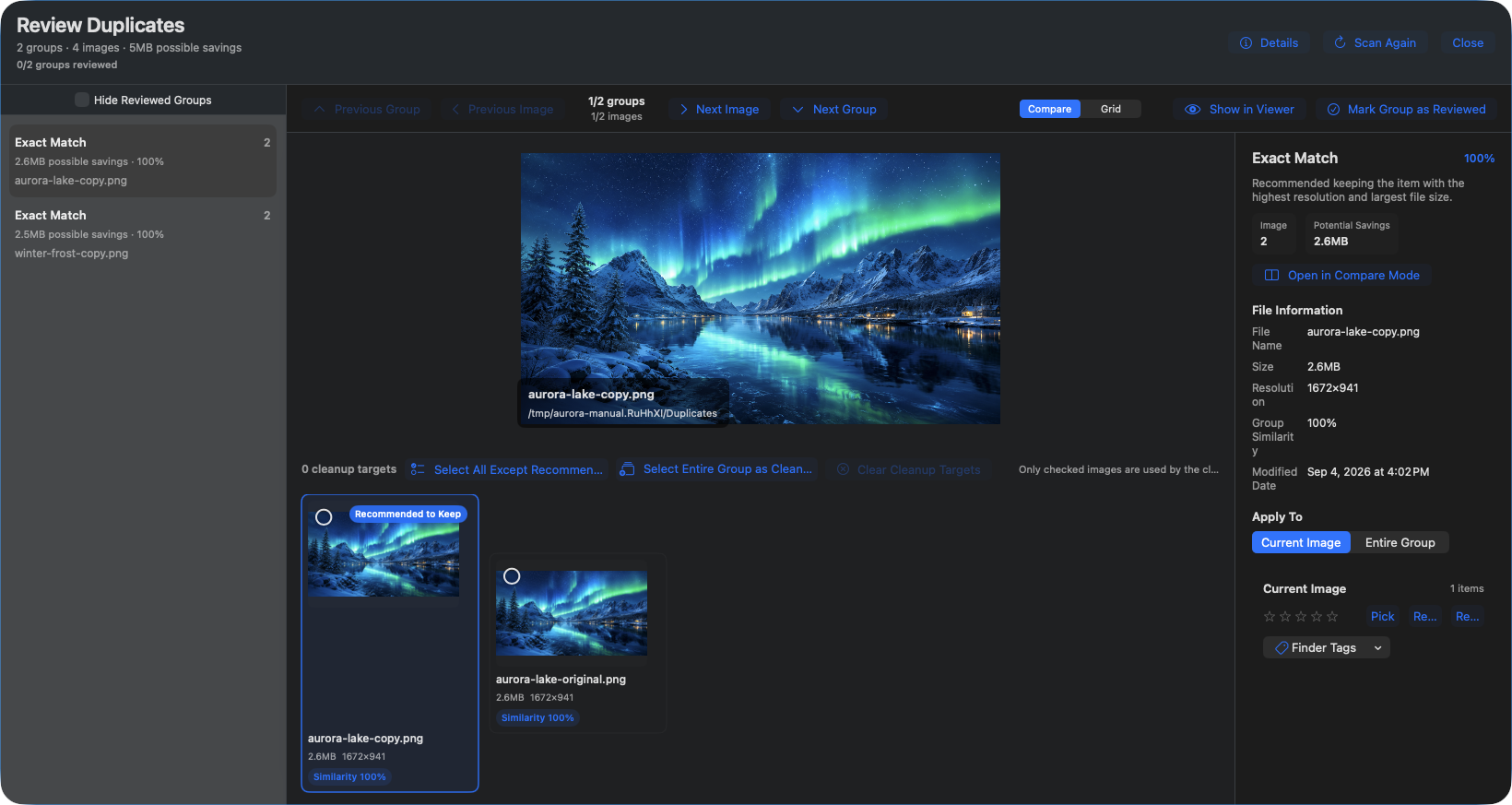
- Review match type, confidence, item count, and estimated savings first.
- The recommended keeper is guidance based on resolution, file size, and RAW status.
- Open the items in the viewer or Compare mode to inspect real differences.
- Optionally add ratings or tags, then explicitly choose Remove, Trash, Move, or Copy.