
AuroraViewer manual
Open images, folders, and archives
You can review selected images, folder trees, and images inside archives in the same library. Source groups preserve where each set came from.
Add sources to the current viewer
- Choose File > Add File or Folder…, or press Command-O.
- Select multiple images, folders, and archives together.
- When scanning finishes, expand the source groups in the sidebar to review the results.
- Repeat the command or drag more sources into the window when you need to add input.
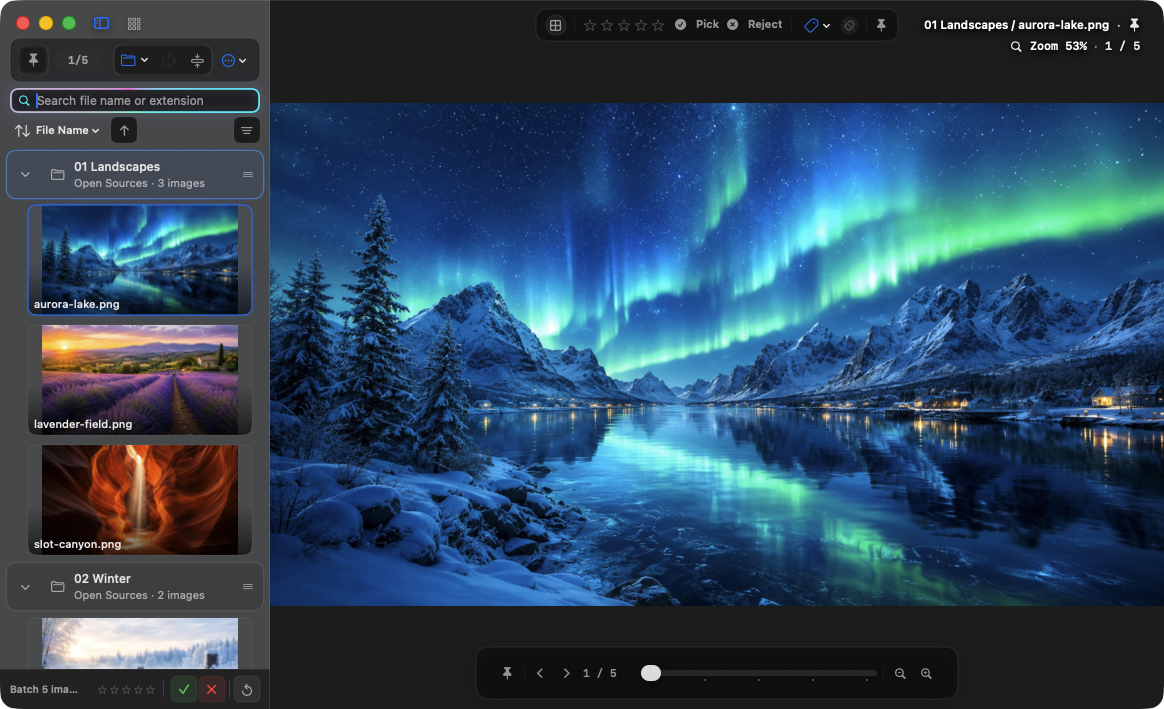
How folders and archives become groups
- Folders are scanned recursively, and supported images are arranged into source groups by path.
- ZIP, RAR, and 7z archives extract only supported image entries to a protected temporary or cache location.
- Archives nested inside another archive are not opened recursively.
- Hidden items are skipped, names use natural sorting, and duplicate URLs are removed.
Supported input and conditions
The scanner recognizes common images, major camera RAW formats, and vector or document formats.
- Common and high-efficiency: BMP, JPEG, GIF, PNG, WebP, TIFF, HEIC, HEIF, AVIF, APNG
- Professional and graphics: SVG, PSD, DDS, JPEG 2000, TGA, PBM, PGM, PPM
- RAW: DNG, CR2, CR3, CRW, NEF, NRW, ORF, RW2, PEF, ARW, SR2, RAF
- Documents and vectors: AI, EPS, EPSF, PDF
Password-protected archives and safety limits
- You can retry an archive password up to three times.
- A single archive is limited to 20,000 entries, 256 MB per image, and 1 GB total extraction.
- Absolute paths and paths that escape the destination are rejected.
- Files extracted from a password-protected archive are cleaned up on exit regardless of the general cache preference.