
AuroraViewer manual
Compare and two-page viewing
Compare mode finds differences between arbitrary candidates. Two-page viewing reads adjacent items in library order. Choose the mode that matches the task.
Compare selected images
- Select one to four images in the sidebar.
- Turn on Compare mode. A two-, three-, or four-slot layout is chosen for the selection.
- Fill empty slots using the slot menu or drag and drop.
- Click a slot to activate it before applying ratings or tags.
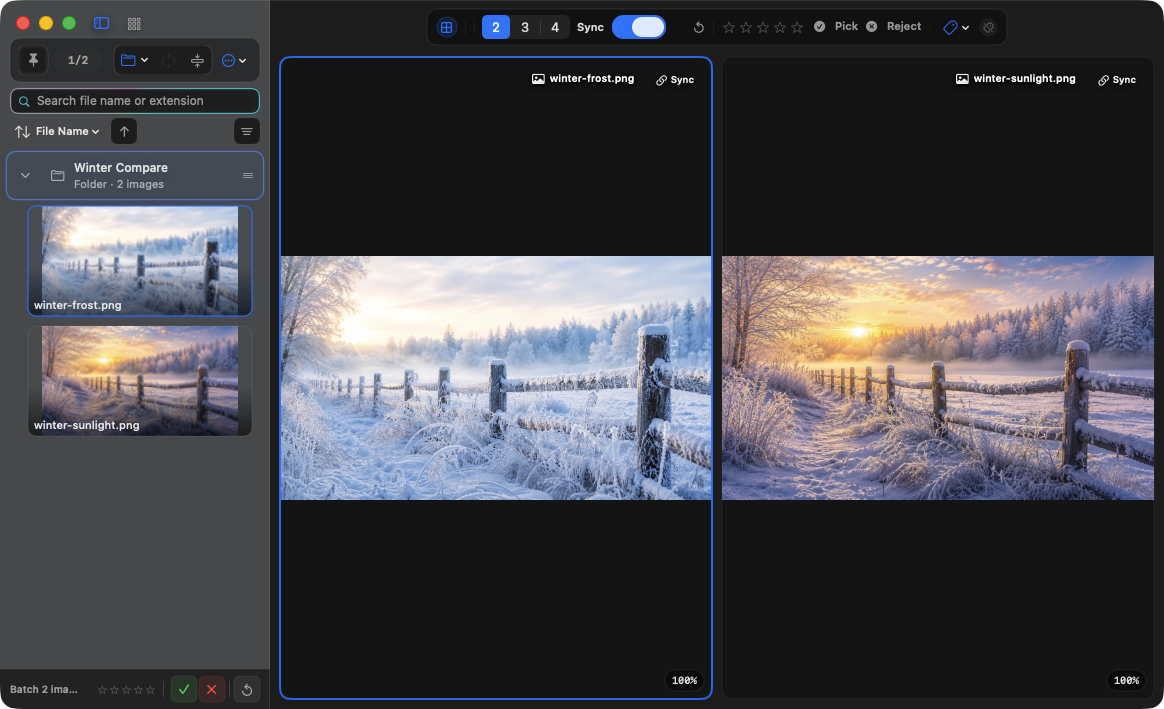
Synchronize zoom and pan
- Enable Sync and manipulate the slot you want to use as the reference.
- Zoom or drag; synchronized slots use the same zoom and pan.
- Turn on Independent for any slot you want to inspect separately.
- Use Reset All Transforms to return every slot to its default state.
Use two-page viewing
- Turn on Two-Page View from the Image menu.
- Choose left-to-right or right-to-left reading order.
- Move through spreads with Left Arrow and Right Arrow.
- Turn off Two-Page View to return to single-image viewing.